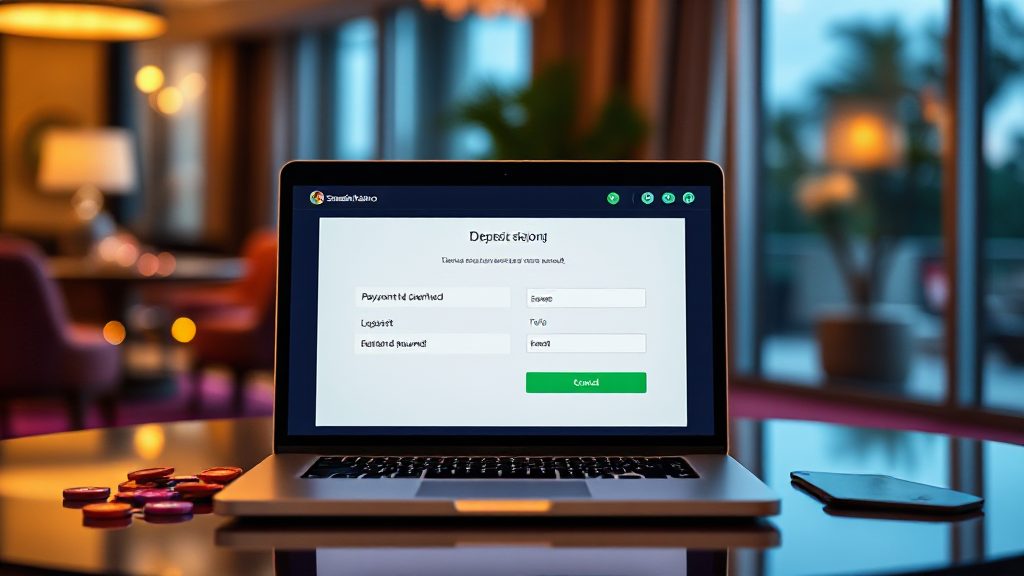
The Deposit Screen, Step by Step, From Choice to Confirmation
You are on the payment page at smasha, cursor hovering over a method you have never used. Before you click, you want to know exactly what happens next. This walkthrough follows the deposit flow as a sequence of screens, from the moment you pick a method to the confirmation message, so you can recognize each step and know what to expect.
The first screen is the method selector. It usually lists options such as card payments, bank transfers, e-wallets, and sometimes prepaid vouchers or mobile payment solutions. Each option shows a small logo and often a minimum and maximum deposit range. If you are unsure, look for a method that displays your currency and a familiar provider name. The smasha kasino guide notes that Finnish players often see local banking options alongside international e-wallets. Selecting a method does not move money yet; it only opens the next screen.
Screen 1: The Method Selector and What It Tells You
The method selector is more than a list. It tells you which deposit channels are active for your account and region. Some methods may be greyed out if they are temporarily unavailable or not supported for your currency. The screen may also show a small fee notice or a processing time label, such as “instant” or “1–3 business days.” Read those labels before you commit. A method that looks convenient but takes days to clear can affect when your balance becomes usable for play.
Pay attention to the minimum deposit amount shown next to each method. If you plan to deposit a small amount, a method with a higher minimum will not proceed. The screen should also display the currency you are depositing in. If the currency differs from your bank account currency, the next screen may show a conversion notice. That is normal, but it is worth noting before you continue.
Screen 2: Entering the Deposit Amount and Currency
Once you choose a method, the amount entry screen appears. Here you type the sum you want to deposit. The field usually shows the minimum and maximum limits again, and sometimes a quick-select row with preset amounts. The currency is typically fixed to your account currency, but some sites let you switch. If you switch, watch for an exchange rate note. The screen may also show a bonus code field, but you can leave it blank if you are not claiming an offer.
This is also where you might see a cashback or bonus eligibility reminder. The smasha casino review mentions a weekly cashback offer, and deposit screens sometimes include a checkbox to opt in. Read the checkbox label carefully; opting in may tie the deposit to specific terms. If you prefer a clean deposit without bonus conditions, leave the box unchecked. The screen should clearly state whether the deposit will be treated as a bonus deposit or a standard deposit.
Screen 3: The Payment Provider Handoff
After you confirm the amount, the site hands you off to the payment provider. This screen may look different from the casino’s own pages because it is hosted by the provider. You might see the provider’s logo, a secure connection indicator, and fields for your payment details. For card payments, this is where you enter the card number, expiry date, and security code. For e-wallets, you may be asked to log in to your wallet account. For bank transfers, you might be redirected to your online banking interface.
This handoff is a normal part of the flow. The casino does not store your full card details; the provider handles them. If the screen looks unfamiliar, check the URL and the provider name before entering anything. A legitimate handoff should match the method you selected. If you selected an e-wallet but see a card form, stop and return to the method selector.
Screen 4: Review and Confirmation of Details
Before the payment is processed, many providers show a review screen. This screen summarizes the deposit amount, the method, and any fees. It may also show the exchange rate if a conversion applies. Read the summary line by line. Confirm that the amount is correct and that the method matches what you intended. If you see a fee you did not expect, you can usually go back and choose a different method.
The review screen is your last chance to catch a typo in the amount or a wrong currency selection. Some providers also show a checkbox for saving the payment method for future use. Only tick it if you are comfortable storing the details with that provider. When you are ready, click the confirm or pay button. This action authorizes the provider to process the payment.
Screen 5: Processing and Security Checks
After you confirm, the provider processes the payment. You may see a progress indicator or a message saying the payment is being verified. This step can take a few seconds or longer, depending on the method. Card payments often clear quickly, while bank transfers may take longer. During this time, do not close the browser window or refresh the page. Some providers use additional security checks, such as a one-time code sent to your phone or a verification step in your banking app.
If the provider requests a verification code, enter it promptly. If you do not receive the code, check that your phone number or email on file is correct. The processing screen may also warn you not to navigate away. Follow that instruction. Closing the window mid-process can leave the payment in an uncertain state, and you may need to contact support to resolve it.
Screen 6: The Confirmation Message and What Comes Next
The final screen is the confirmation message. It typically states that your deposit was successful and shows the amount credited. You may also see a reference number or a transaction ID. Note that number down or take a screenshot in case you need to contact support later. The confirmation screen may include a button to return to the casino lobby or to view your balance. Click it to go back to the main site.
After the confirmation, check your account balance to ensure the deposit appears. If the balance does not update immediately, wait a few minutes and refresh. Some methods credit instantly, while others may take longer. If the confirmation says the payment is pending, the funds may not be available for play until the provider completes the transfer. Keep the confirmation message until you see the balance update. If something goes wrong, the reference number will help support trace the deposit.
That is the full sequence: method selection, amount entry, provider handoff, review, processing, and confirmation. Each screen has a purpose, and knowing what to look for at each step makes the deposit flow easier to navigate. Whether you are trying a new method or returning to a familiar one, the screens follow a predictable order, and the confirmation message is your signal that the process is complete.
